Checkout is paused for a short while for maintenance. Your cart is saved: please check back soon.
Help topic 9 of 10
Team, tax and your account
Share the work with helpers, keep your account secure, and know who handles sales tax.
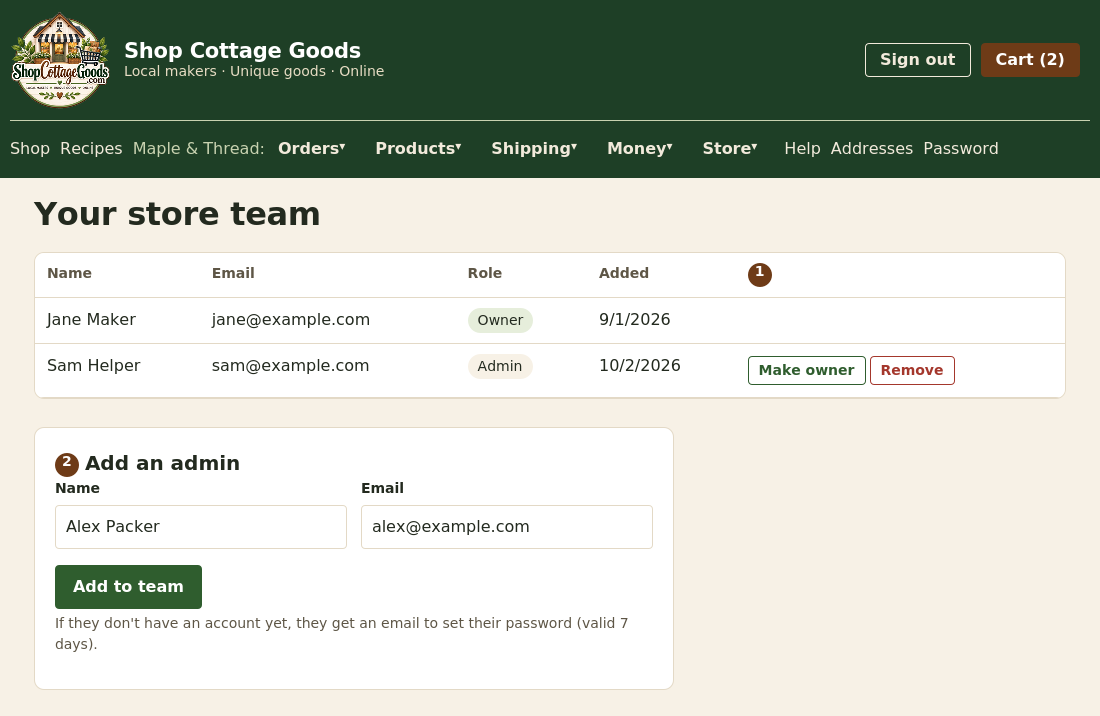 The numbers match the steps below. Select the picture to see it full size.
- Your team: you're the owner; admins can run the store but can't change the team or your payout bank details. Make owner hands the store to someone else (you become an admin). Remove takes away their access; their account stays as a shopper account.
- Add an admin: enter their name and email. If they already have an account, they're added and emailed. If not, they get an invitation to set their own password, valid for 7 days.
Your store profile
Select Profile in your store menu to add the contact email, phone and address customers see, and to upload your
logo (a square image, at least 100 x 100 pixels). Your logo and contact details can appear in the emails customers get about your orders.
Shoppers see your store's name with your location, for example Maple & Thread (Burlington, VT): the city from your
store profile and the state your store is registered in. Leave the city empty to show just the state.
Seller agreement
When you sign up, you read the Seller Agreement to the end and accept it; we email you a copy. It explains what you control (your
store, products, prices, food details, shipping and fulfilling orders) and what the marketplace controls (approval, fees, payments,
payouts, refunds and reviews). You can read it any time under Store > Seller agreement. If it's updated, your store's
owner is asked to accept the new version there.
Two-step sign-in
Store accounts (owners and team members) must use two-step sign-in: as well as your password, you enter a code when you
sign in, so nobody can get into your store with your password alone. The first time you sign in, you'll be asked to set it
up under Two-step sign-in at the top of the site. It takes about a minute.
- Authenticator app (recommended): scan the QR code with Google Authenticator, Microsoft Authenticator,
Authy or a similar app; it shows a new 6-digit code every 30 seconds, even without signal.
- Emailed codes: we email you a code each time you sign in.
You also get 10 backup codes: print them or keep them somewhere safe. Each works once if your phone is lost or
email isn't reachable. App users can also choose "Email me a code instead" when signing in. Tick
Don't ask again on this device to skip the code for 30 days on your own phone or computer (never on a shared one).
New phone? Under Two-step sign-in, choose Change and set up the app again. Lost everything? Contact us:
an administrator can reset it after confirming who you are, and you'll set it up again at your next sign-in.
Your password
- Select Password at the top of any page to change it. Changing it signs you out on your other devices.
- Forgotten it? Select Forgot your password? on the sign-in page and we'll email you a link to choose a new one (it works once, for 24 hours). The marketplace can also send you a link or give you a temporary password.
Sales tax
Normally the marketplace charges, collects and pays sales tax on your sales, and there's nothing to set up; your Tax page says so.
If the marketplace has agreed that you handle your own tax, the Tax page lets you enter a rate per state for each tax flag; the tax is then
added to your payouts for you to pay to the state.
SNAP/EBT
Tick SNAP/EBT eligible on qualifying food products. Shoppers see the badge once the marketplace has recorded your USDA FNS
authorization. EBT cards can't be used online yet; the eligible amounts are recorded on each order for when they can.