Checkout is paused for a short while for maintenance. Your cart is saved: please check back soon.
Help topic 6 of 10
Promotions
Two steps: put some products in a group, then give the group a deal. Shoppers see their saving as its own line in the cart, and product pages list the deals.
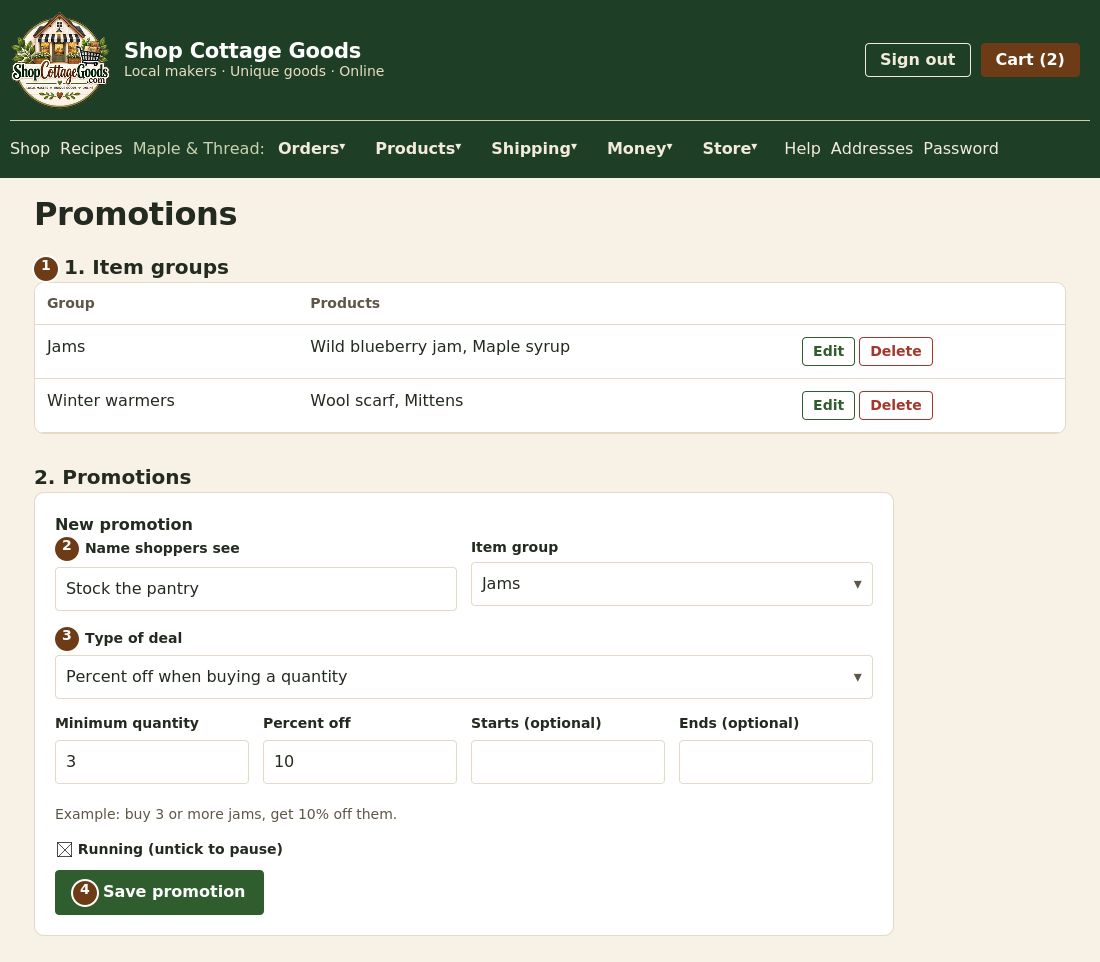 The numbers match the steps below. Select the picture to see it full size.
- Make an item group: give it a name (like Jams) and tick its products. A product can be in several groups.
- Start a new promotion: the name shoppers see, and the item group it's for.
- Choose the type of deal and fill in the amounts (see the table below). Start and end dates are optional.
- Select Save promotion. Untick Running to pause a deal without deleting it.
| Type of deal | Example |
|---|
| Percent off when buying a quantity | Buy 3 or more from Jams: 10% off them |
| Dollars off when buying a quantity | Buy 2 or more from Winter warmers: $8 off (once per order) |
| Bundle price | Any 2 from Bottles for $50 (4 items = 2 bundles) |
| Buy some, get items from a group for a price (or free) | Buy 1 from Packs, get 1 from Bottles for $10. Use the same group for "buy 2, get 1 free". |
| Buy some, get a specific item free | Buy 2 from Winter warmers, get a jar of jam free. It can go into the shopper's cart automatically. |
How deals work together: when several fit the same items, the shopper gets the best one, and an item is never
discounted twice. Discounts come out of your share of the order, and the marketplace fee is worked out on what the shopper paid after them.
Free gifts that aren't in the shop
For Buy some, get a specific item free, the free item can be something you don't sell on its own, like a sample jar:
set that product to Not in shop on its product page, give it stock, and choose it as the free item with
Add the free item to the shopper's cart automatically ticked. Shoppers can't find it in the shop; it's added to their cart
when they qualify, as a free gift they can't change the quantity of (they can still remove it).
The free item needs stock. Shoppers see the offer only while the free item has stock. When it runs out, the offer
hides itself everywhere, any gift waiting in a cart is taken back, and the promotion shows No stock on your Promotions page.
Add stock and it comes back on its own.