Checkout is paused for a short while for maintenance. Your cart is saved: please check back soon.
Help topic 7 of 10
Ship and hand over orders
You're emailed when an order arrives. The Orders page lists only your part of each order, waiting-to-ship first, with the customer's phone as a tap-to-call button.
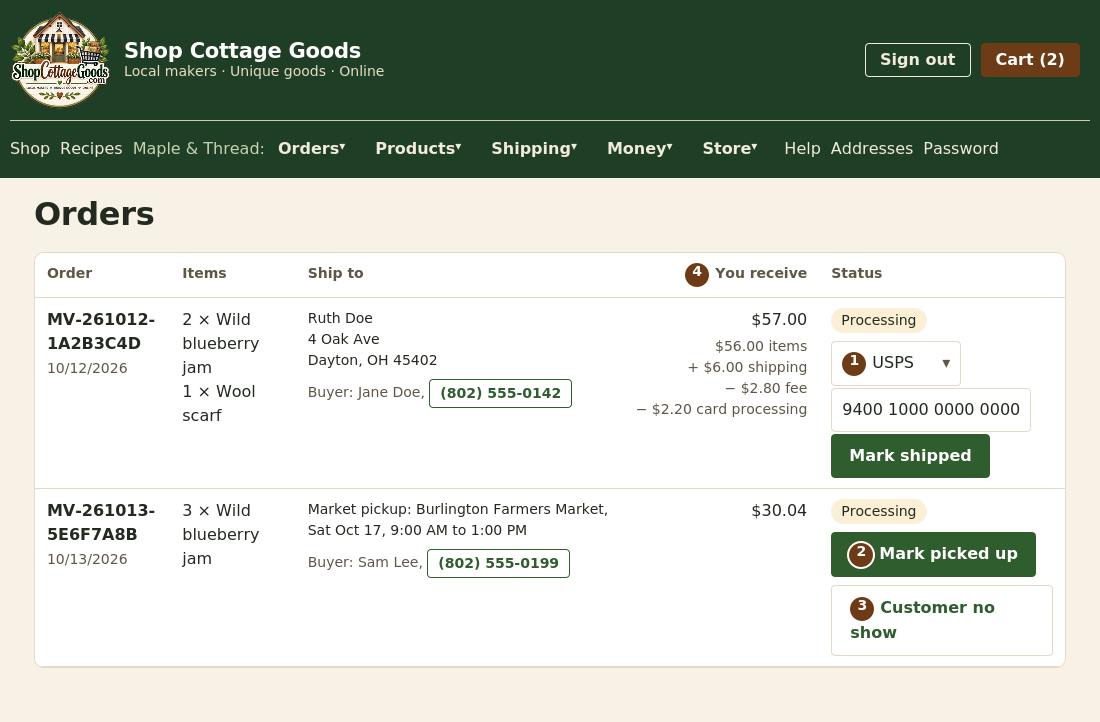 The numbers match the steps below. Select the picture to see it full size.
- Shipping an order: choose the carrier, enter the tracking number, and select Mark shipped. The shopper is emailed with a tracking link, and your payout for the order is sent. For Pickup (handing it over yourself), no tracking number is needed.
- Pickup orders: when the shopper collects at the market, select Mark picked up. That releases your payout, just like shipping.
- Customer no show: from the pickup date on, choose refund the customer (a full refund; the items go back into your stock) or keep the payment (the order closes as a no-show and your payout is released; suits perishable goods). The shopper is emailed either way.
- You receive: what you'll be paid for the order, with the breakdown underneath (topic 8 explains it). Items with options show
the shopper's choices, like "Cookie box (2 x Chocolate chip, 4 x Oatmeal)".
Local delivery orders
Orders the shopper chose to have delivered show Local delivery with the distance. Deliver them, then select
Mark delivered: the shopper is emailed and your payout is released, just like a pickup.
Finding an order
Use Find an order at the top of the Orders page: scan the barcode on the customer's receipt with a barcode scanner,
or type an order number (or part of one), the customer's name or phone. The order appears with its buttons, and the box is ready
for the next scan. Show all orders brings back the full list.
Local deliveries
Orders > Local deliveries lists your delivery orders: show the ones waiting (or delivered, or all), pick dates, or
search an order number, and sort by newest, oldest or nearest. Each shows the items, the customer's address (with a Map link),
phone, email and distance. Open route in Google Maps plans a drive from your store through the deliveries shown, in
that order (sort by Nearest first for a sensible route). Mark delivered works here too.
Getting the Print Helper
Use Download the Print Helper next to Check printer on your Orders page, then follow its instructions to set it
up on the computer by your receipt printer.
Your store as an app on your phone
Open your Orders page on your phone and follow Use your store as an app: on Android select Install the app;
on iPhone or iPad tap Share, then Add to Home Screen. The app opens straight to your orders, full screen.
At a market, use Scan with camera next to Find an order to scan the barcode on a customer's receipt.
Notifications for new orders
Get a notification on your phone or computer the moment a new order is paid, even when the app is closed. Go to
Orders > Notifications, tap Turn on notifications and allow them when your browser asks. Do this on
each device you want them on; everyone on your team can turn them on for themselves. Send a test notification checks
they arrive.
- Android, Windows, Mac and Linux: Chrome, Edge, Firefox or Safari.
- iPhone and iPad (iOS 16.4 or later): first add the store app to your Home Screen (Share, then Add to
Home Screen), open it from there, then turn notifications on.
A notification shows the order number, how many items and your store's total, never the customer's name or address. Tap it to
open that order. Turn them off on the same page, or remove a device you no longer use. If none arrive, check notifications
are allowed for the site (and for the browser, in your phone's settings) and that Do Not Disturb is off.
Printing receipts
Select Print receipt under an order number to print a till-style receipt on your receipt printer (Epson TM, 80 mm).
It needs the Print Helper, a small program from the marketplace that runs on your computer; select
Check printer at the top of the page to see that it's ready. Without it, the receipt opens in a new window
to print from your browser.
Shipping labels
Select Buy shipping label on an order waiting to ship. You'll see the method the shopper chose at checkout (for example
USPS Ground Advantage) and the package weight from your products; adjust the weight and box size if needed.
- Buy label buys the shopper's chosen method. See other methods lists current prices from your carriers if you'd rather use another.
- Select Print label (PDF): it's sized for 4 x 6 inch label printers and prints fine on paper too.
- The carrier and tracking number are filled in on your Orders page for you; select Mark shipped once the package is on its way.
- The label's cost is taken from your payout for that order. Made a mistake? Void label (before marking shipped, and only if it wasn't used) gives the cost back.
- Your return address comes from your Store profile, so add your street address there first.
If something goes wrong
- Marked shipped by mistake? Open Remove shipped on the order, give a reason, and confirm. The order goes back to waiting to ship and the shopper is emailed a correction. If your payout was already sent, it's taken back and sent again when you ship.
- Customer can't find their confirmation? Select Re-send confirmation to customer on the order. It goes to the email on the order (at most once every 10 minutes); the marketplace can send it to a corrected address.
- Refunds are made by the marketplace, for a whole order or specific items. If your payout was already sent, the refunded part is taken back from it.
- Problem reports: if a shopper reports a problem with your order, you're emailed a copy.